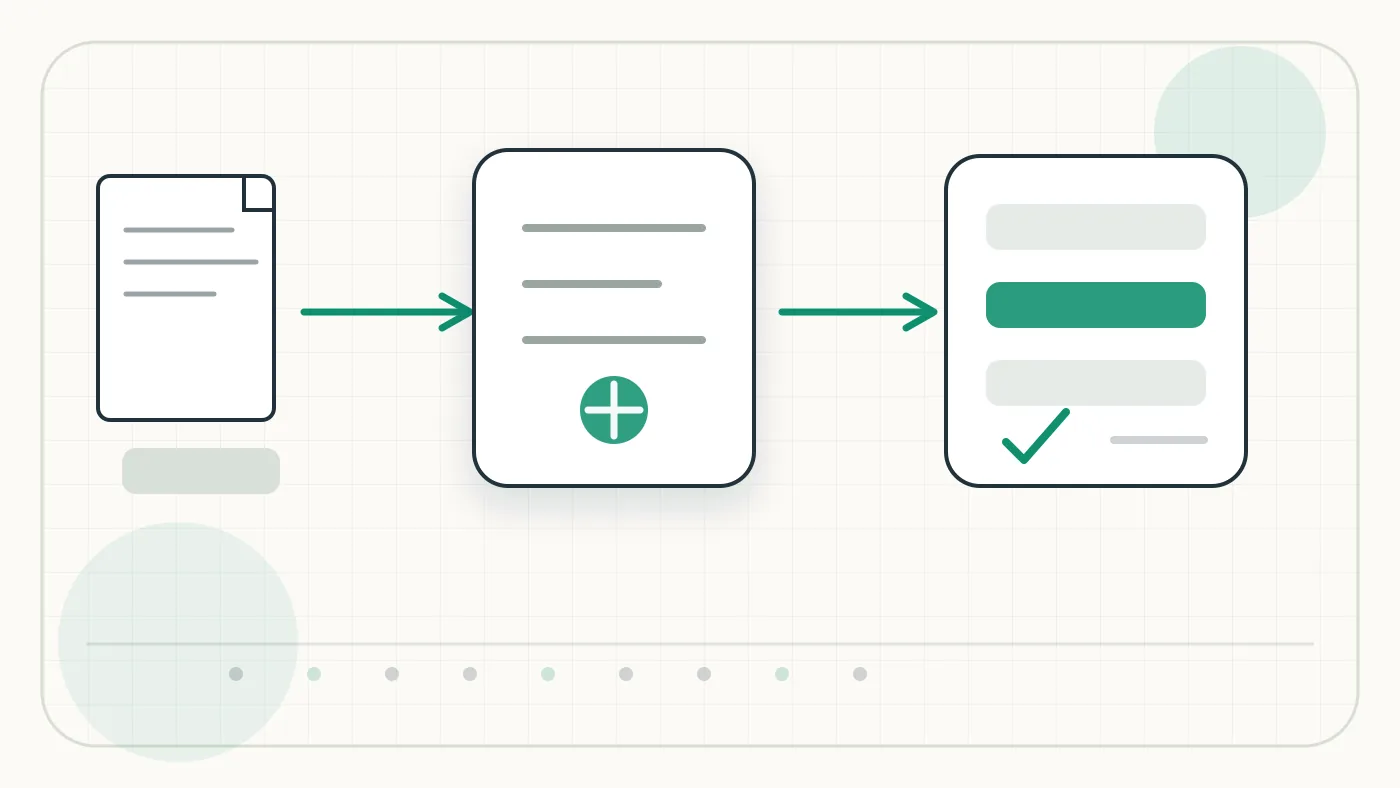
Klippa provides OCR and document processing for invoices, receipts, and other business documents, often used in API-driven finance workflows. In the Utildesk context, this card is mainly relevant for OCR, PDF, and invoice automation: what role does the tool play in the process, where does it need review, and when is another model a better fit?
Who is Klippa suitable for?
- Product teams embedding OCR via API into their own software
- Workflows exporting to a database, ERP, or automation layer
- Teams that need clear JSON or webhook handover
Who is Klippa not suitable for?
- Pure no-code projects without technical ownership
- Strictly local processing without a provider API
- One-off PDF conversion without integration needs
Typical Use Cases
Klippa fits workflows where PDFs, scans, or document uploads should not be typed manually. Common use cases include invoices, receipts, purchase orders, forms, delivery notes, or tables inside PDFs. The goal is usually not just searchable text, but structured fields, review status, and export data that can continue into accounting, spreadsheets, databases, ticketing systems, or automation tools.
For Klippa, start the pilot with real documents rather than polished samples. Skewed scans, multi-page PDFs, mixed languages, changing supplier layouts, and missing required fields show whether API behavior, response schema, and error handling fit the intended workflow.
Main Features
- OCR or document recognition for digital and scanned files.
- Extraction of recurring fields such as invoice number, date, amount, supplier, or table rows.
- Handover through API, export, webhook, or workflow step.
- Validation, review, or downstream processing depending on the setup.
- Integration into automation chains such as n8n, Make, Zapier, Power Automate, or custom services.
Workflow in Practice
A reliable Klippa workflow starts at file intake and ends only when checked data has been exported. The chain should include preprocessing, OCR, field extraction, plausibility checks, and exception handling. For invoices, supplier, invoice date, tax amount, total amount, currency, and payment terms should be validated before posting.
For Klippa, business teams should look closely at transparent error lists, traceable corrections, and a clean review step. In invoice workflows, a reliable exception path is often more valuable than a marginal OCR accuracy gain.
What to Check Before Choosing
- Does the tool support the relevant document types and languages in your own material?
- Is there a clear export path: JSON, CSV, webhook, API, or direct integration?
- How are low confidence values, duplicates, and incomplete fields handled?
- Which DPA, data location, retention, and deletion options are available?
- How predictable are costs with many pages, attachments, or API calls?
Advantages and Limits
Advantages
- Can reduce manual data entry and shorten processing time.
- Works as a building block for invoice, PDF, and document automation.
- Enables structured downstream workflows when validation and export are planned well.
Limits
- Poor scans, changing layouts, and handwritten additions remain error sources.
- Without review rules, wrong fields can silently flow into accounting or databases.
- Privacy, DPA, data location, and deletion requirements must be checked before production use.
What Really Matters in Daily Use
With Klippa, the longest feature list matters less than whether the tool gets a clear place in the existing workflow. The value appears when recurring document types are modeled well and exceptions do not get stuck in an inbox.
For Klippa, start with a small pilot using real material: who provides the inputs, who reviews the result, and where does the output go next?
Workflow Fit
Klippa fits best when invoices, orders, leads, or forms arrive in similar formats and are handed to operational systems after review. Before rollout, roles, permissions, export paths, and quality control should be explicit; otherwise the tool quickly becomes another storage place beside the real process.
Editorial Assessment
Klippa is most useful for repeatable extraction tasks with clear fields, owners, and correction paths. If every document has a new layout or the downstream systems are not defined yet, start with a lighter or more specialized approach first.
Pricing & Costs
Pricing model: Plan-based. For Klippa, the real comparison should include page volume, document types, API calls, user seats, review features, retention, setup effort, operations, and support.
Comparison in the Utildesk Context
Depending on the problem, alternatives to Klippa may come from different tool classes: OCR APIs such as Mindee, Klippa, or Veryfi, cloud services such as AWS Textract, Google Document AI, or Azure AI Document Intelligence, enterprise IDP such as ABBYY Vantage and Rossum, no-code parsers such as Docparser or Parseur, and local open-source pipelines with Tesseract OCR, OCRmyPDF, or PaddleOCR.
Related Guides
- Best OCR APIs for Invoices in Germany 2026
- Read Invoices Automatically from Emails: Tools and Workflows
Open frequently asked questions
FAQ
Is Klippa only an OCR tool?
What should a Klippa pilot look like?
Start with a bounded process, a small group and a clear success criterion. Check output quality, permissions and handovers before expanding the scope.
Which data should not be processed in Klippa without review?
Sensitive or confidential content should wait until contract terms, access, storage and deletion controls have been reviewed. Escalate uncertainty to the responsible privacy owner.
When is an alternative to Klippa the better choice?
Choose an alternative when the need is occasional, a required integration is missing, or administration and cost outweigh the practical benefit.
Not only. The real value usually comes from combining OCR with field extraction, validation, and export.
Can Klippa read invoices automatically? Klippa is relevant for invoice workflows, but quality depends on scan quality, layout, language, required fields, and review rules. Test with real German invoices before rollout.
Do you need developers? For Klippa, it depends on the target workflow: simple tests are easier, but stable production use needs ownership for integration, data quality, monitoring, and error handling.
What should teams check for privacy? Before using Klippa, teams should review the DPA, data location, retention, subprocessors, deletion options, and any use of customer data for training.
Editorial cluster update June 2026
Klippa belongs in the OCR cluster for receipts, invoices and structured document data rather than generic PDF handling.
The useful test is a real document flow: intake, classification, fields, validation, export to accounting or ERP and error review.
When Klippa fits well
Klippa is most useful when the workflow is already named and the team is not only looking for a tool name. For the Utildesk guide clusters, the practical questions are: which task is being prepared, which data is processed, who reviews the result and which alternative is more realistic in the same work context?
Limits and review points
With Klippa, accuracy is not the only metric. Teams need to evaluate exception handling, privacy, EU processing, integrations and manual review steps.
Internal comparison points
Useful comparison points in the Utildesk catalogue are Rossum, Veryfi, Mindee, Azure AI Document Intelligence. These links keep Klippa connected to its real cluster of alternatives, risks and workflow roles instead of treating it as a standalone listing.